What you'll do
Ten simple steps — from opening the folder you were given, to chatting with Duaa for the first time.
📁 See What's Inside Your Agent Duaa Folder
Open the folder you received on WhatsApp after completing your Duaa AI purchase. Inside, you'll find the following six items:
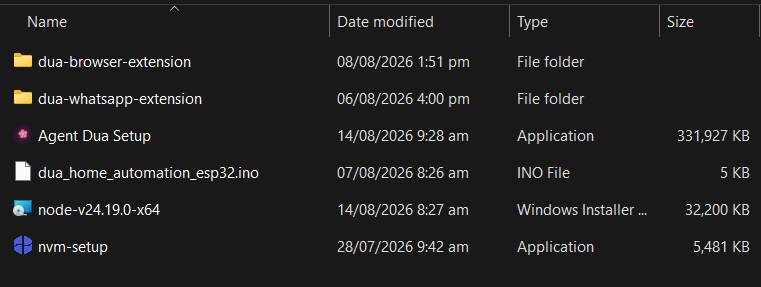
💾 Keep this folder somewhere safe — you'll need it a few times during setup.
⚙️ Install Node.js & NVM
Duaa needs Node.js to run on your computer. Double-click node-v24.19.0-x64 and go through the installer:
- Click Next on each screen and accept the license agreement.
- Leave all default options unchanged.
- Click Install, then Finish.
Next, double-click nvm-setup and install it the same way (Next → Next → Install → Finish). NVM keeps Node.js running smoothly and avoids version conflicts.
🌐 Load the Browser & WhatsApp Extensions
The browser extension lets Duaa browse websites, while the WhatsApp extension allows her to read and send WhatsApp messages.
- Open Chrome and go to chrome://extensions.
- Turn on Developer mode (top-right).
- Click Load unpacked and select dua-browser-extension.
- Click Load unpacked again and select dua-whatsapp-extension.
📥 Install Agent Duaa
Go back to the folder from Step 1 and double-click the Agent Duaa Installer.
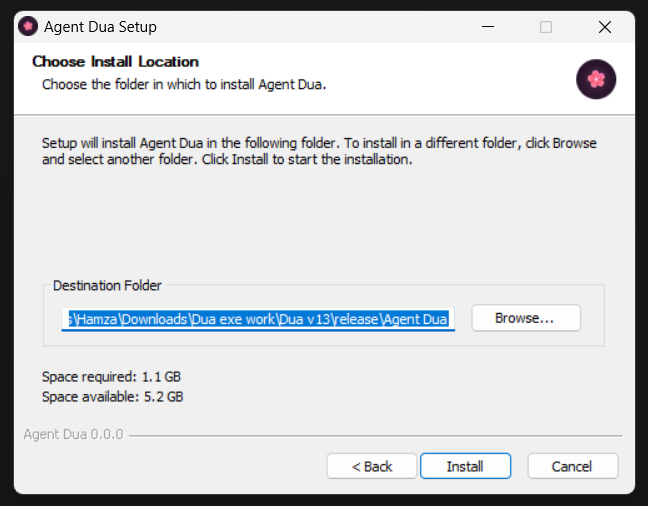
Click Install, choose the installation path, then click Next. ⏳ Installation may take a few minutes, so please wait until it finishes.
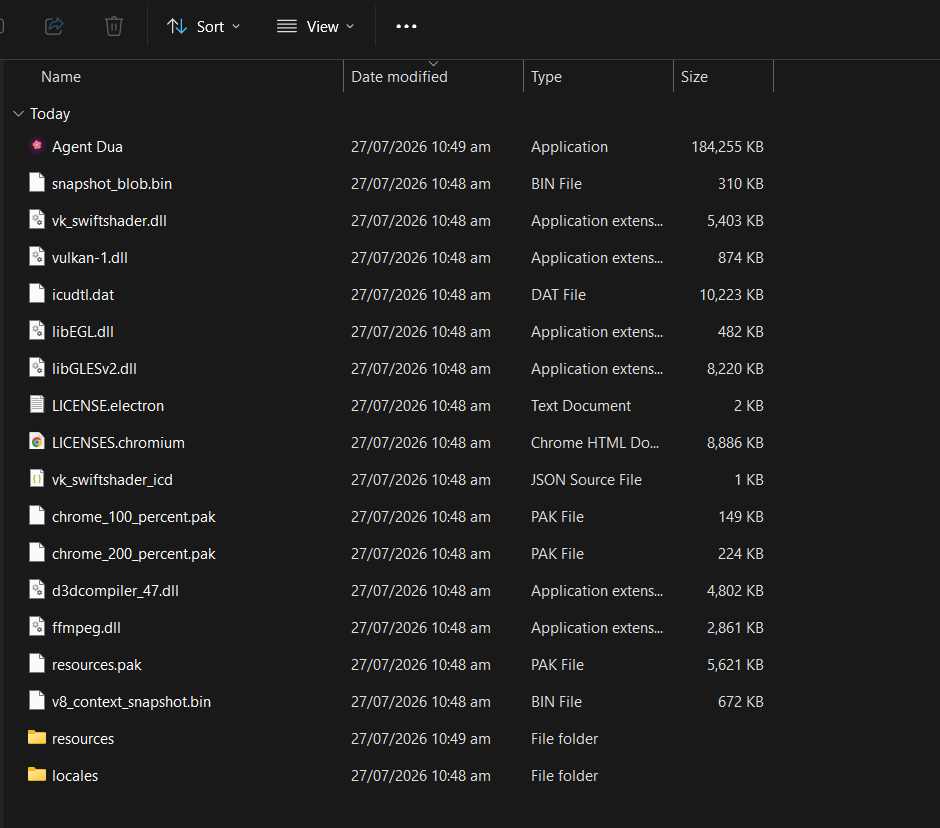
Once installation is complete, you'll see the Agent Duaa folder.
📁 Open the Agent Duaa Folder
Open the Agent Duaa folder created after installation.
✨ This is where the real Agent Duaa application lives.
🛡️ Make sure your PC antivirus is disabled, as it may prevent Duaa AI's background services from running. Go to Windows Security → Virus & threat protection → Manage settings → Turn off Real-time protection.
🚀 Start Agent Duaa
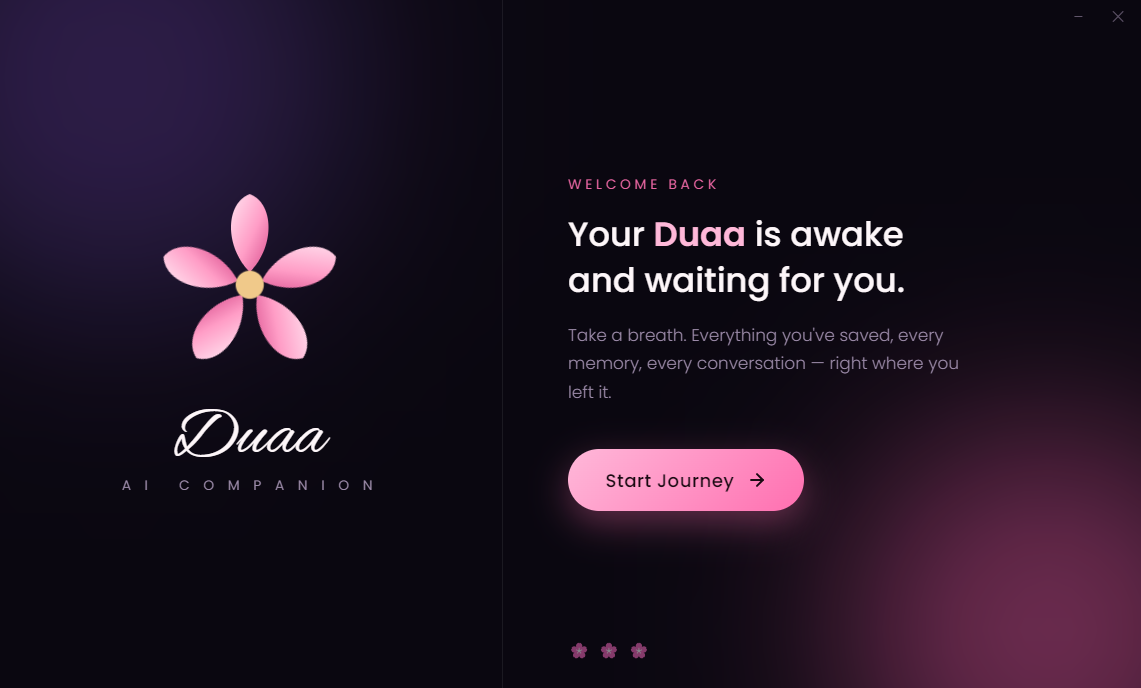
Double-click the Agent Duaa application. A welcome window will appear, and Duaa will greet you.
- Click the Start Journey button.
- ⏳ Wait a few seconds while Duaa opens.
- 🌐 She'll automatically open in your browser at a local address (such as localhost:3000).
🔐 Meet Duaa's Login Screen
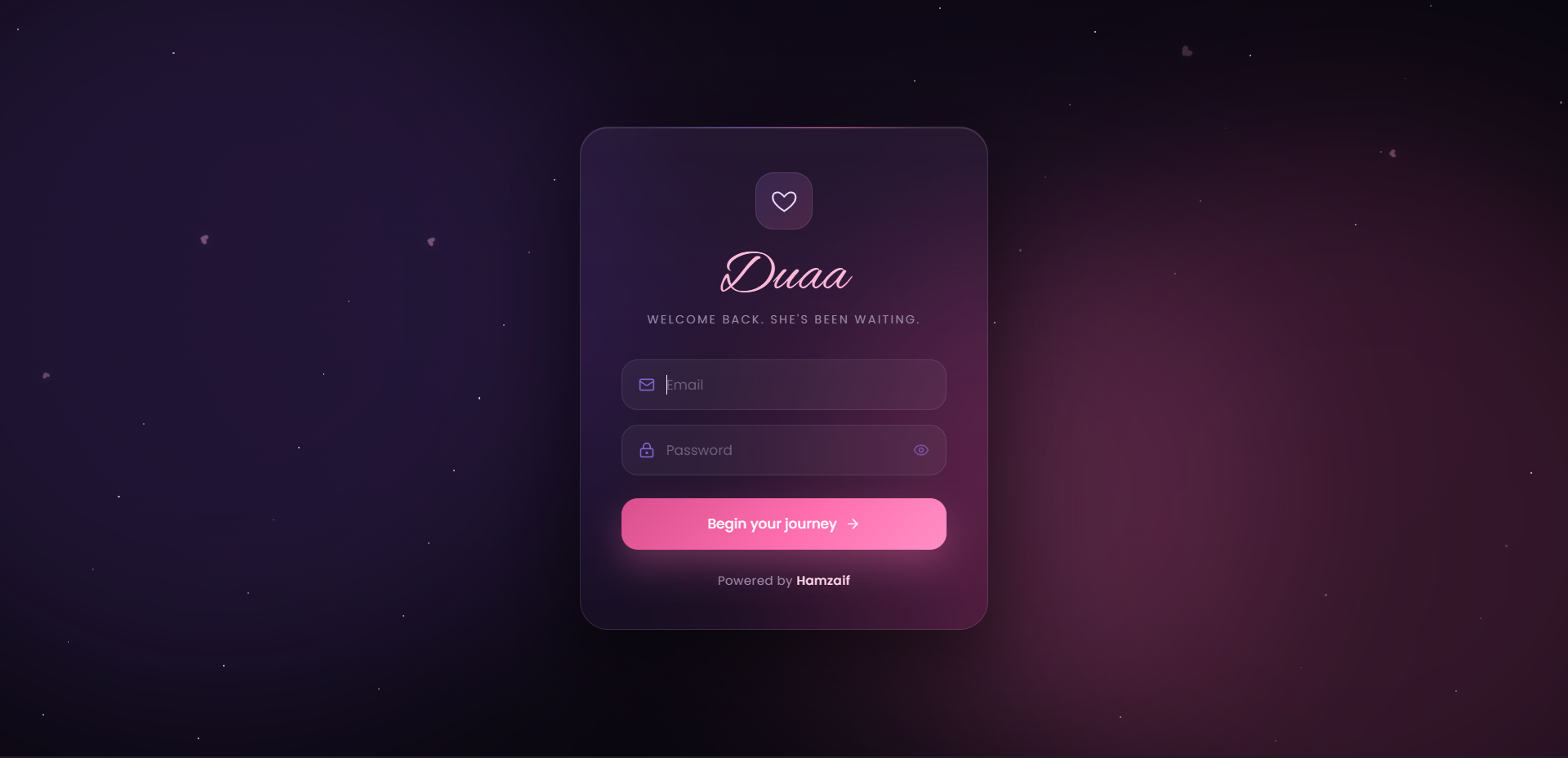
Enter the email and password provided by the admin, then click Begin Your Journey.
⚙️ Complete Your Settings
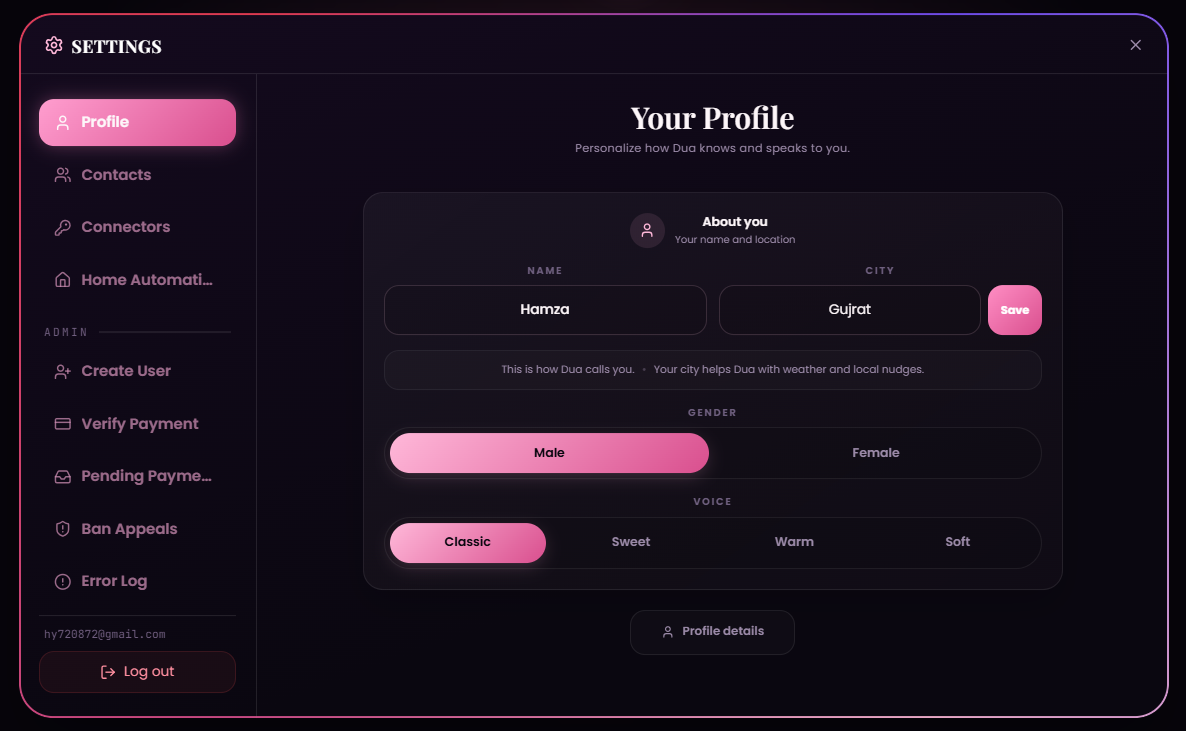
Click the menu button, open Settings, then complete each tab:
- Profile – Enter your name and choose Duaa's voice.
- Contacts – Add the WhatsApp contacts Duaa can message or call.
- Connectors – Connect your Gemini, Groq, Mistral, Cohere, and TomTom APIs, along with Google, Discord, Dropbox, and GitHub to enable Duaa's integrations.
🌸 Choose a Visualizer

Click the Visualizer button in the top-left corner and choose the appearance you like most.
💬 Talk to Duaa or Share Your Screen
Speak naturally or use the Chat panel. You can also manage Tasks, review Recalls, and use Share Screen so Duaa can guide you on your desktop.
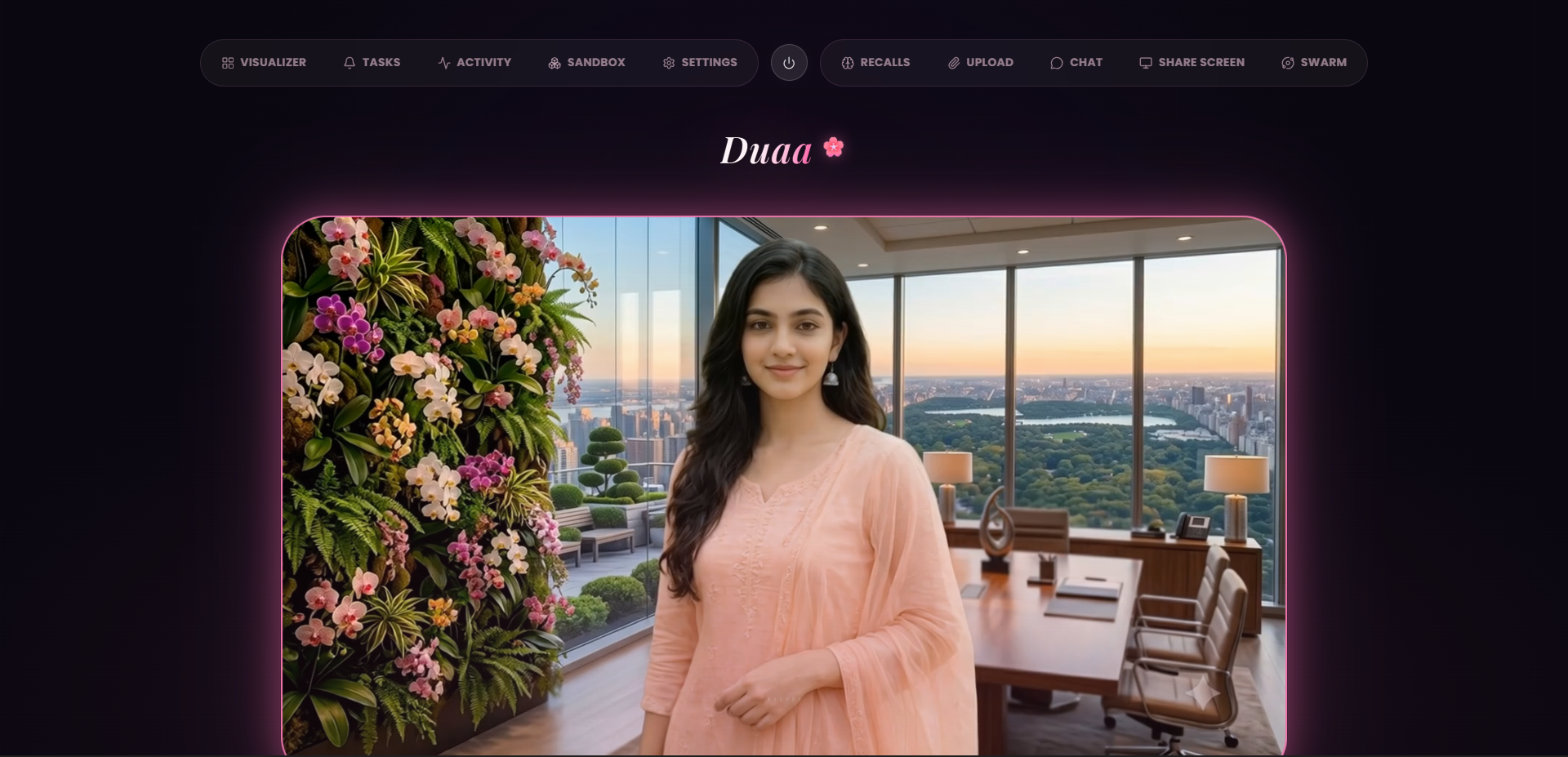
💖 That's It — Duaa Is Ready!
She'll remember what matters, help with your tasks, and answer naturally. Welcome home. 🌸✨
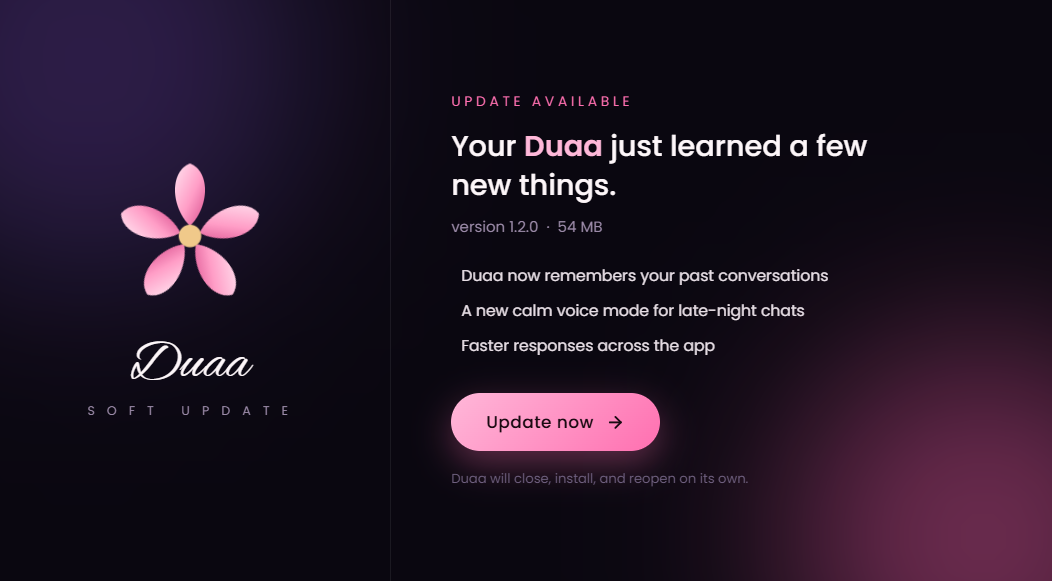
✨ New Release
Duaa AI automatically checks for new updates. When a new version is available, an update screen will appear in Duaa dashboard.
💖 How to Update
Click the Update Now button to start the download in the background. 🌷 Once it's ready, open the new installer. Duaa AI will close automatically and install the latest version. ✨
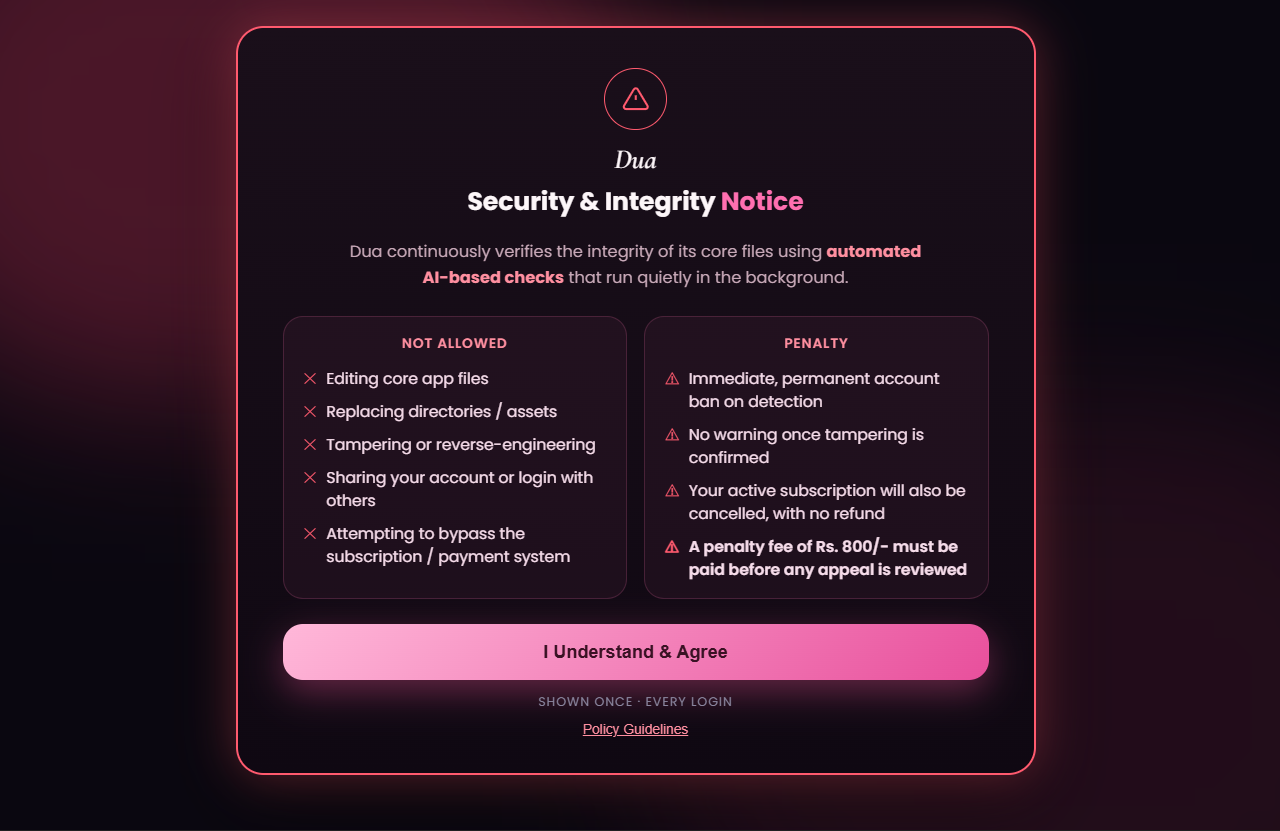
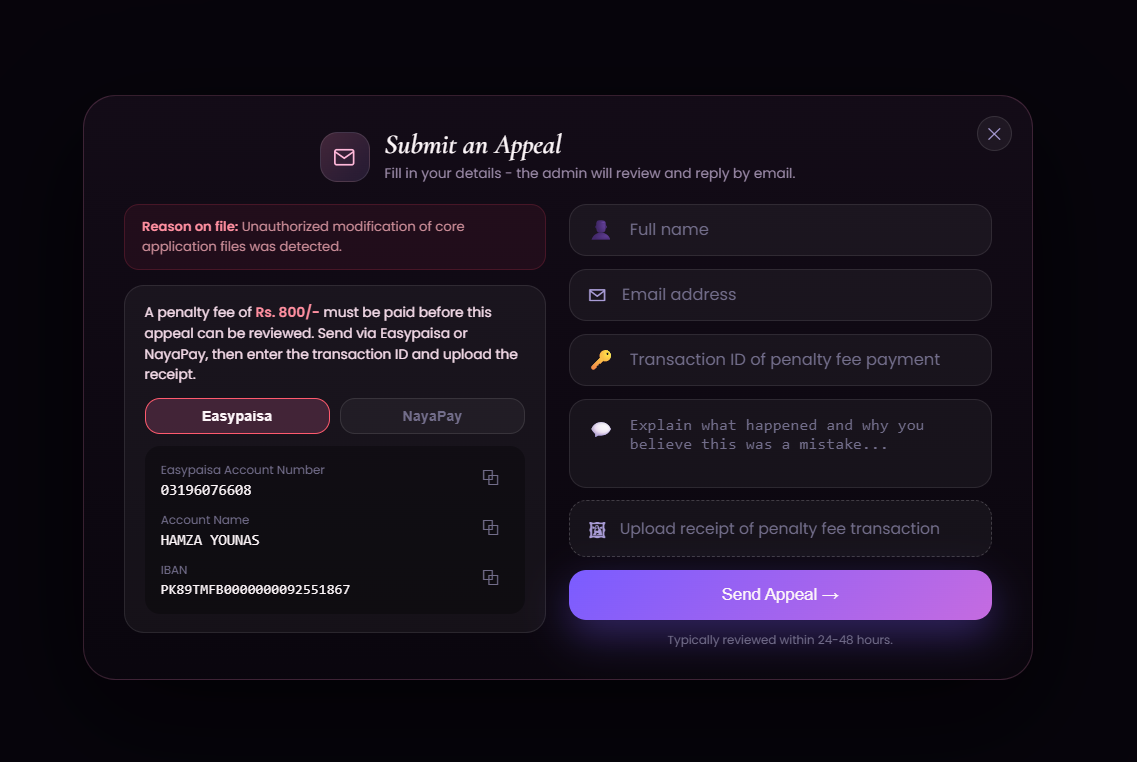
Got Banned?
If your account is flagged by Duaa AI's integrity check, you can submit an appeal from the login screen for admin review.
📝 How to Submit an Appeal
Fill out the appeal form shown when your account is suspended. 📩 Your request will be sent to the admin for review.
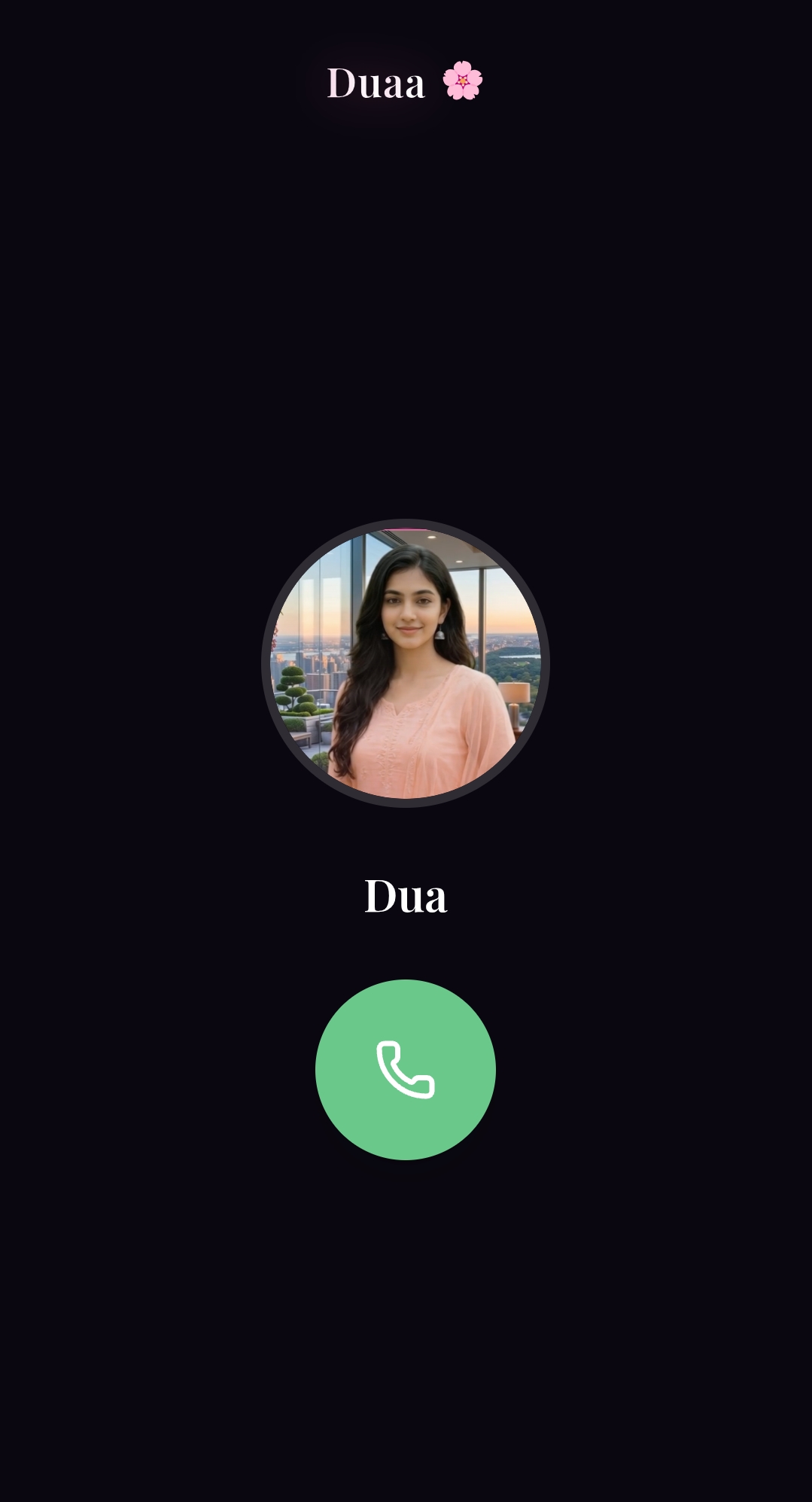
Talk to Duaa from Your Phone
Connect to Duaa from your phone in one simple step.
📱 Connect & Call Duaa
Get your personal server link from the admin, open it in your phone's browser, sign in with your Duaa account, then tap Call to start talking.
Connect Your Smart Devices
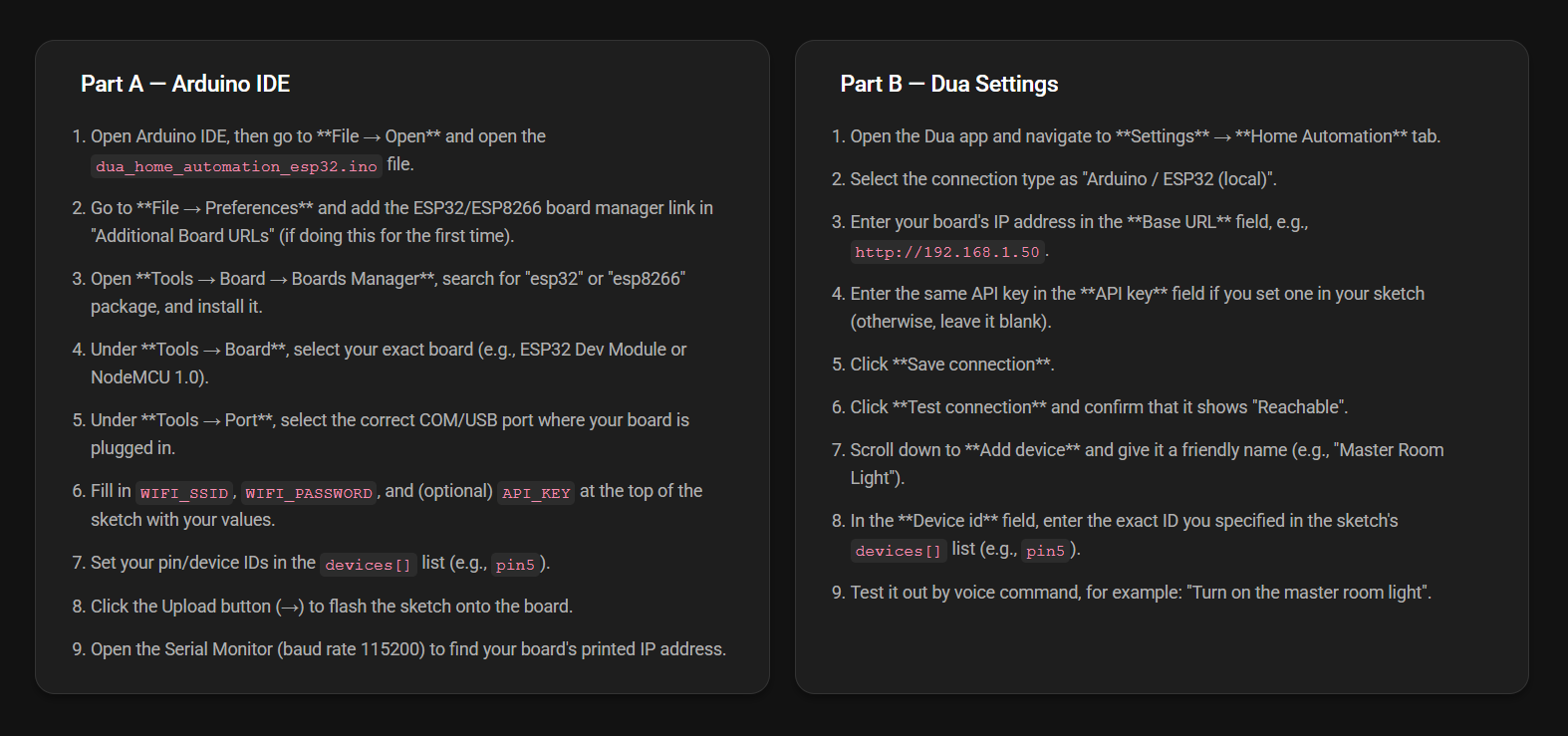
Connect your Arduino or ESP32 devices with Duaa by following the setup guide below.
🏠 Home Automation Setup
Go to the Agent Duaa folder from Step 1 and open the .ino file. Make sure Arduino IDE is installed on your PC, then follow the guide below to connect your Arduino or ESP32 with Duaa.